
Comprehensive Guide to Using and Optimizing Your Fire TV Stick
This detailed guide provides insights into setting up your Fire TV Stick, accessing a wide array of streaming services, ensuring optimal internet connectivity, and utilizing features like screen mirroring and device management. Perfect for new users and experienced owners alike, it helps to enhance your entertainment experience with practical tips and straightforward instructions for maximum enjoyment.
Setup and Installation
Once you’ve plugged your Fire TV Stick into the appropriate HDMI port on your HDTV, turn on your television. Use your remote to select the corresponding HDMI input source. This allows the device to display content properly. After selecting the right input, you can proceed with pairing and configuring your remote control to ensure smooth operation.
Tip: If your remote does not connect immediately, press and hold the home button for about 10 seconds to establish a connection.
Explore a Wide Range of Content
The Fire TV Stick consolidates access to countless movies, TV shows, live news, sports, and entertainment platforms into a compact device. Whether you're craving the latest blockbuster or streaming your favorite series, this device has you covered.
Popular channels and streaming services available include Netflix, Hulu, HBO Max, Crackle, ESPN, and BBC News. These platforms offer a diverse library of content suited for all tastes and age groups, making the Fire TV Stick a versatile entertainment hub.
Stable and Fast Internet Connection
To enjoy high-quality streaming without interruptions, a reliable high-speed internet connection is essential. The Fire TV Stick operates exclusively online, relying on your internet bandwidth to deliver seamless video playback and quick access to various apps.
Tip: During streaming, reduce the number of connected devices consuming bandwidth on the same network. Multiple devices sharing limited internet speed can cause buffering and reduce streaming quality.
Screen Mirroring Capabilities
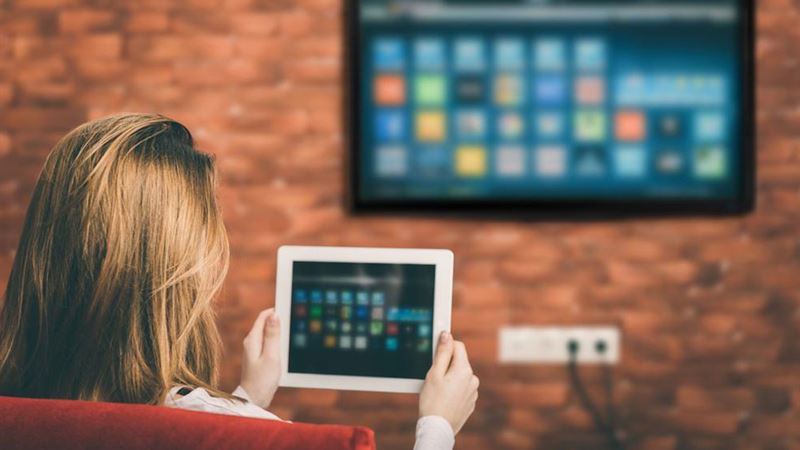
The Fire TV Stick supports screen mirroring, allowing you to share content from compatible devices like tablets or smartphones directly onto your TV. To enable this, go to your device settings, select ‘display and sounds,’ then choose ‘mirroring,’ and pick your Fire TV Stick from the list of available media devices.
Using Multiple Devices
The Fire TV Stick is designed for use on a single television at a time. It cannot be connected to multiple TVs simultaneously. If you want to switch to another TV, you need to disconnect from the current device and connect to the new one.
Powering Off and Sleep Mode
To turn off your Fire TV Stick, simply unplug the device from the HDMI port. Alternatively, put it into sleep mode via the settings menu: navigate to Settings > System > Sleep. This helps conserve power while keeping the device ready for quick startup.