
Ultimate Beginner’s Guide to Using a Computer for the First Time
This detailed beginner's guide covers essential steps for first-time computer users, including hardware setup, creating user accounts, exploring the desktop environment, understanding operating systems, browsing the internet, and maintaining your device. It aims to empower new users to confidently operate their computers and navigate digital systems effectively. The guide simplifies complex information, making it accessible for everyone eager to start their technology journey, ensuring a smooth and rewarding experience from the very beginning.
Embarking on your journey to mastering computers can seem daunting initially, especially if you're new to digital technology. However, understanding the fundamental steps will empower you to confidently operate your computer efficiently. This comprehensive guide aims to walk you through each crucial aspect of getting started with your first computer, from physical setup to exploring the operating system and internet browsing. Whether you're setting up a desktop for the first time or trying to familiarize yourself with basic functions, this guide has got you covered.
Preparing Your Computer Hardware
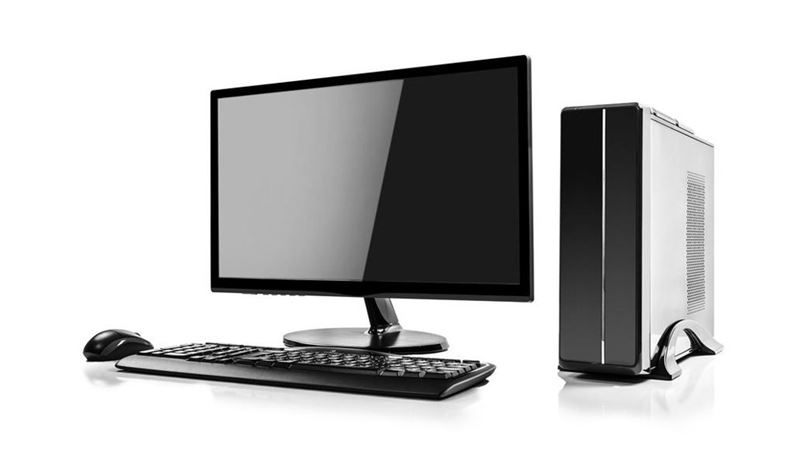
The first step in using your computer is ensuring that all hardware components are correctly assembled and functioning. Your computer system typically consists of the tower (or desktop case), monitor, keyboard, mouse, and power supply. Begin by placing the tower on a stable surface near an electrical outlet. Connect the monitor to the tower using the appropriate cable (HDMI, VGA, or DisplayPort). Next, connect the keyboard and mouse to the designated USB ports on the tower. If you are using wireless peripherals, insert the USB transmitter into a free USB port and ensure your wireless keyboard and mouse are powered on and paired correctly. Finally, plug the power cable into the tower and connect it to a power outlet. Before turning on the computer, double-check all connections to avoid missing or loose cables.
Powering Up Your Computer and Creating User Accounts
Once all hardware is connected securely, press the power button on your computer tower. The system will begin to boot up, and you will see the manufacturer’s logo followed by the operating system’s loading screen. Upon startup, most modern computers will prompt you to set up a user account. Creating an individual user account is essential for security and personalization. It enables you to store your files privately and customize your desktop environment. When selecting a username, choose something easy to remember but not easy for others to guess. Set a strong password comprising a mix of uppercase and lowercase letters, numbers, and special characters to protect your account from unauthorized access.
Getting Acquainted with the Desktop Environment and Basic Features
After logging into your user account, you will land on the desktop. This is the main workspace where you'll access applications, settings, and files. Familiarize yourself with essential icons such as 'My Computer' (or 'This PC') and 'Control Panel' (or 'Settings' in Windows 10/11). These tools allow you to view storage space, manage hardware devices, and adjust system preferences. Recognize the taskbar usually located at the bottom of the screen; it displays open programs, system icons, and the Start menu. Exploring the Start menu or Windows menu provides access to installed applications, documents, and system settings. Understanding the layout of your operating system, including how to open, close, and switch between windows, is fundamental to efficient computer use.
Operating Systems Overview
Different computers run various operating systems (OS), with Windows and macOS being the most common. Windows OS (such as Windows 10 or Windows 11) is widely used on PCs due to its user-friendly interface and compatibility with numerous software applications. Apple computers operate on macOS, which features a sleek, intuitive design. Regardless of the OS you are using, basic functions like opening applications, adjusting settings, and managing files are similar. You should familiarize yourself with your specific OS version to utilize features effectively and troubleshoot common issues. Updates and security patches are crucial to keep your system secure and functioning smoothly.
Exploring Web Browsers and Internet Usage
Accessing the internet is an integral part of using a computer today. Internet browsers such as Google Chrome, Mozilla Firefox, Microsoft Edge, or Safari enable you to navigate websites and perform online tasks. Launch a browser from your desktop or taskbar and explore the process of entering web addresses, searching for information, and bookmarking favorite sites. As a beginner, it's important to understand internet safety—be cautious when visiting unfamiliar websites, avoid sharing sensitive personal information, and learn about basic security measures like enabling firewall and antivirus protection. Exploring online resources will greatly expand your knowledge and productivity.
Maintaining Your Computer and Final Tips
Regular maintenance ensures your computer stays in good working condition. Keep your software updated, perform virus scans regularly, and back up important files. Gradually explore additional features and software according to your needs—from email setup to installing new applications. As with any new skill, patience and practice are key. Don't hesitate to seek help from online tutorials, user manuals, or tech support forums if you encounter challenges. Confidence with your computer will grow over time, opening opportunities for work, learning, and entertainment.